
Add or remove a password to control access
To set a password on your Word, Excel or PowerPoint file click:
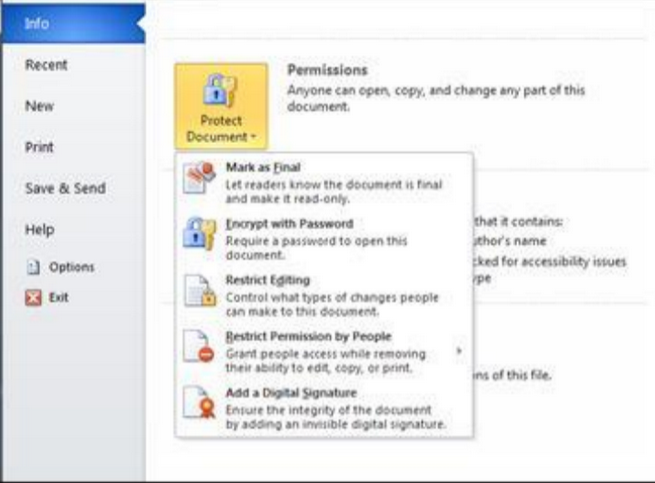
File > Info > Protect Document > Encrypt with Password.
You'll be prompted to create a password, then to confirm it. After you've added a password to your
file you'll want to be sure to save the file to make sure the password takes effect.
After you've added a password to your file, that password will need to be entered before anybody can open the file.
To remove the password:
Open the file, which will require the current password, go to File > Protect Document > Encrypt with
Password. Delete the password and click OK. Be sure to save your file to make that change
permanent.
Allow users to read your file, but control changes
In an open document, click File > Info > Protect Document. You'll see the following options.
Protect Document button with options
Mark as Final
Communicate that you're sharing a completed version of a file so that reviewers or readers are less
likely to make inadvertent changes.
When a file is marked as final, typing, editing, commands, and proofing marks are disabled or turned off, and the file becomes read-only.
When you mark a document as final, Word asks you to save the file. The next time you open it, you
will see a yellow MARKED AS FINAL message at the top of the document. If you click Edit Anyway,
the document will no longer be marked as final.