
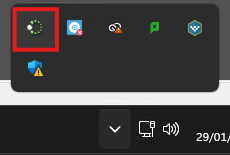
- In the Windows task tray, locate the LanSchool icon and left-click it to open the interface.
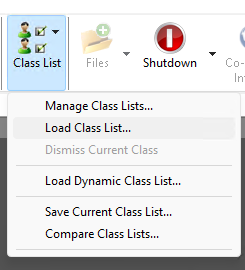
- Select “Class List”, and then “Load Class List…” from the drop-down.
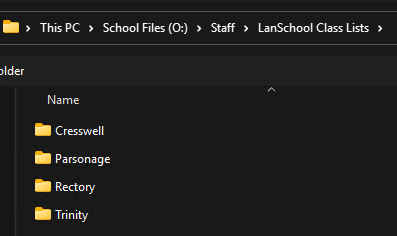
- Navigate to: “O:\Staff\LanSchool Class Lists”. From here, locate the relevant classroom and select it to load it into your current LanSchool session.
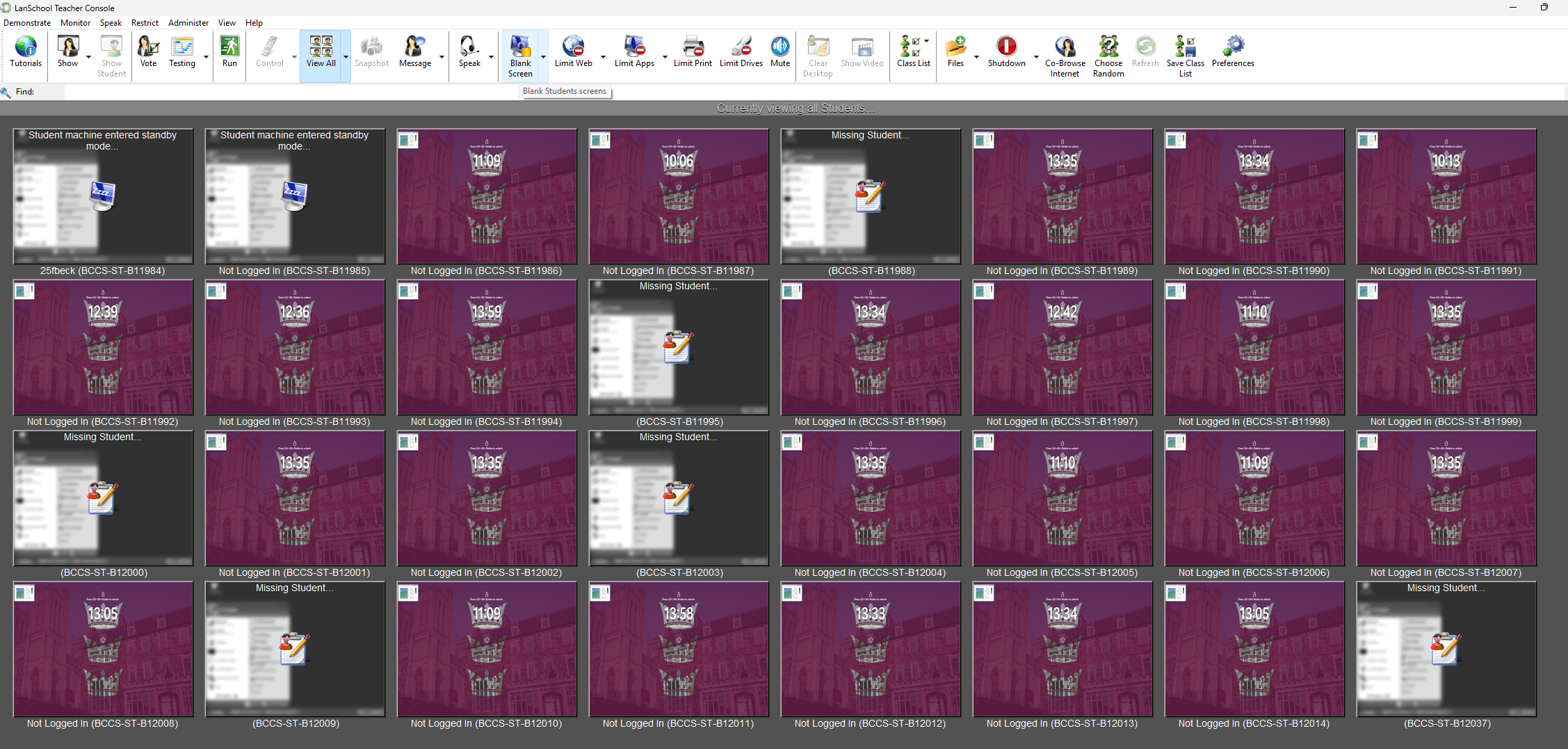
- On screen, you should now see all of the student computers within your classroom. Press “Ctrl + A” to select all of them. You can then use the “Blank Screen” command (highlighted) during lessons to minimise distractions.
LanSchool blanking student screens Print
Created by: Jack Cross
Modified on: Thu, 29 Jan, 2026 at 2:01 PM
Did you find it helpful? Yes No
Send feedbackSorry we couldn't be helpful. Help us improve this article with your feedback.