
If a Chromebook is connected to a smartboard or an HDMI dock but isn’t displaying correctly:
Press Ctrl + F4
(F4 is the Fullscreen key on a Chromebook.)Each press cycles through display modes:
• Mirror – Same image on Chromebook and board
• Extend – Board becomes a second screen
• Internal Only – Only the Chromebook screen
• External Only – Only the smartboard/monitorStop on the mode the teacher needs (usually Mirror).
If the display still doesn’t appear, confirm:
• Smartboard/projector is powered on.
• HDMI cable/dock is firmly connected.
• Smartboard/projector input is set to the correct HDMI port.
Alternatively, Display settings can be accessed via Settings
1. Navigate to and select the Status tray.
2. Select the "settings Cog", then in the menu select "Displays" under Device.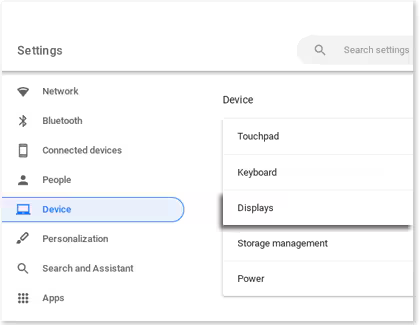
3. The two displays will appear in the menu: your Chromebook display and your connected monitor. You can click on the two tabs to change the displays' settings, such as the display size, The virtual position of the screens can be rearranged from this screen by dragging the displays into different positions.
4. By default, your Chromebook's screen will be extended to the external monitor. If you'd rather mirror your Chromebook's screen, check the box that says "Mirror Built-in display".
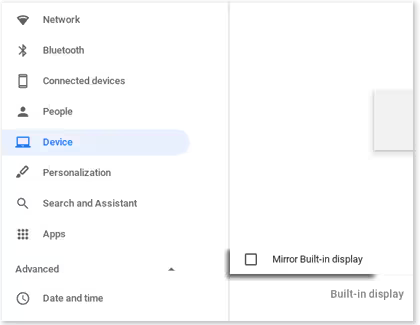
5. To reverse this, uncheck "Mirror Built-in Display".