
1. Log in to Gmail
2. Select the settings cog at the top right of the window, then select "See All Settings"
3. From here, select the 5th option on the bar across the top of the page, "Filters and Blocked Addresses"
4. If you have any existing filters you will see them listed here. Select "Create a new Filter"
5. This will open the Menu you would use to input the criteria you would like to filter by, for example, if I were to filter any emails sent To the Trinity all staff mailgroup, I would enter the following
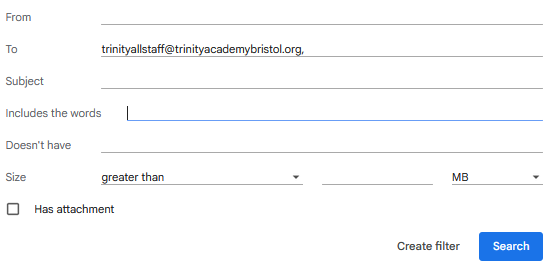 Please note that, as this is a mail group, mail is actually sent to it and distributed to its members. If you were to filter an individual staff member, you would enter their email in the "from" section.
5. This will open the Menu you would use to input the criteria you would like to filter by, for example, if I were to filter any emails sent To the Trinity all staff mailgroup, I would enter the following
Please note that, as this is a mail group, mail is actually sent to it and distributed to its members. If you were to filter an individual staff member, you would enter their email in the "from" section.6. You can check what mail this would effect using the search button.
7. Once happy with the results you can select "Create filter" this will open the following menu.
8. Fill the menu out with the rules that you would like applied to this filter.
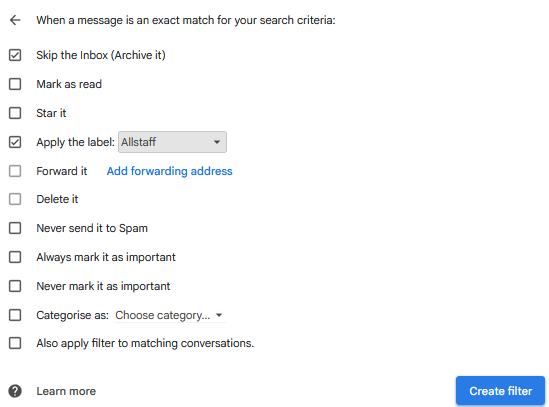 In this instance, I have applied settings that will filter mail sent to the allstaff mail group into a label "Allstaff" When selecting this, you have the option to create a new label.
The skip the inbox check box ensures mail is not displayed in my primary inbox and is only viewable under the indicated label.