
- Connect to the WiFi. The password for this is sent out via all staff emails or you can email the IT Helpdesk to ask for the current password.
- Once you are connected, you will hopefully be taken to a login page that should look similar to the below screenshot. This step doesn't always work flawlessly so scroll down to the troubleshooting steps if you have issues getting to this page.
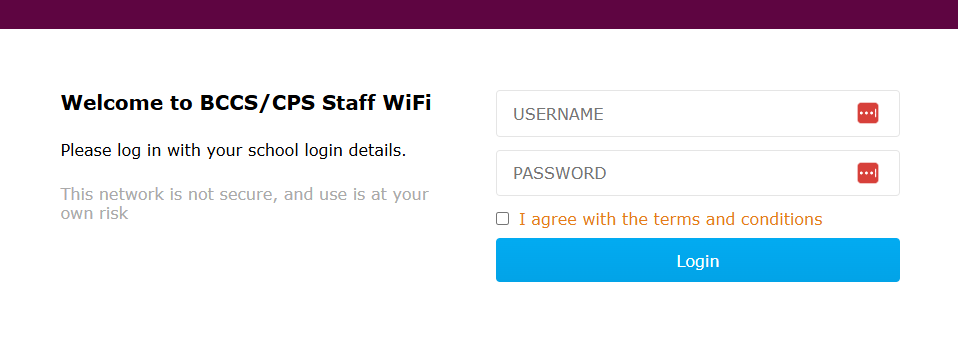
- The username and password you should be using to log in are the same as what you use to log in to school computers. The username is not your full email.
- Tick the box to agree to the terms and conditions then click login.
- As long as you didn't get an error message, you should now be connected and able use the staff WiFi.
Troubleshooting
When I try to connect to the WiFi it says wrong password.
- You may have an old password saved. You'll have an option on your device to forget or remove the WiFi from your known networks. This will let you enter the new password which you can find either from the all staff email with the password or by emailing the IT Helpdesk.
I can't get to the login Page.
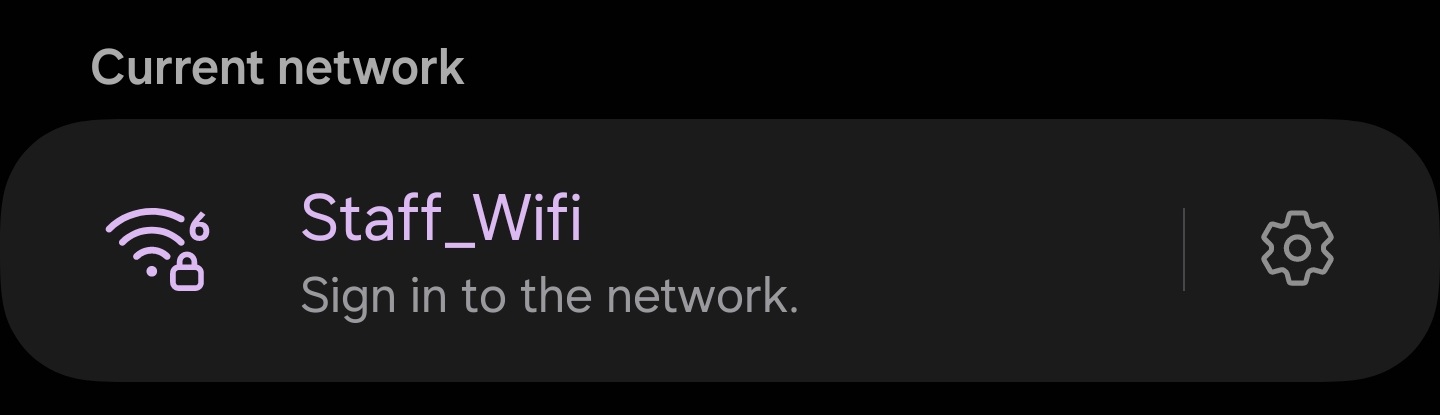
- Once connected, in the WiFi settings, there may be an option prompting you to sign in. By tapping/clicking this, it should take you to the correct page. Below is an example of what this might look like on an Android phone.
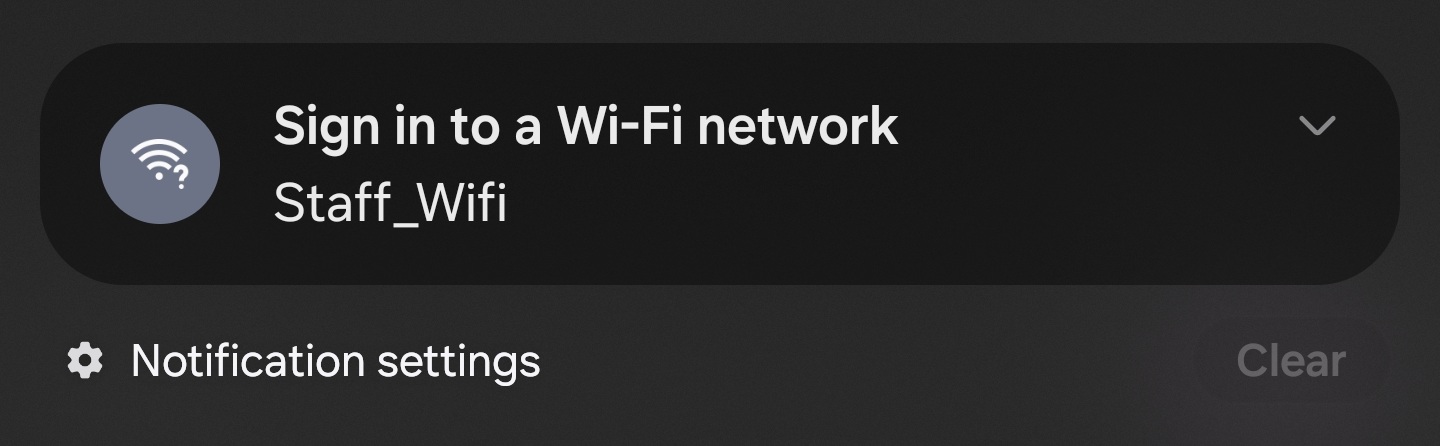
- There may also be a notification prompting you to sign in which can also be used to take you to the login page.
- Try disabling your mobile data. Some phones with recognise that the WiFi isn't working so will fallback to using your mobile data which will prevent the page from appearing. It's worth trying this in conjunction with the other steps.
- Open up a browser and search for anything on Google.
- Try visiting http://neverssl.com
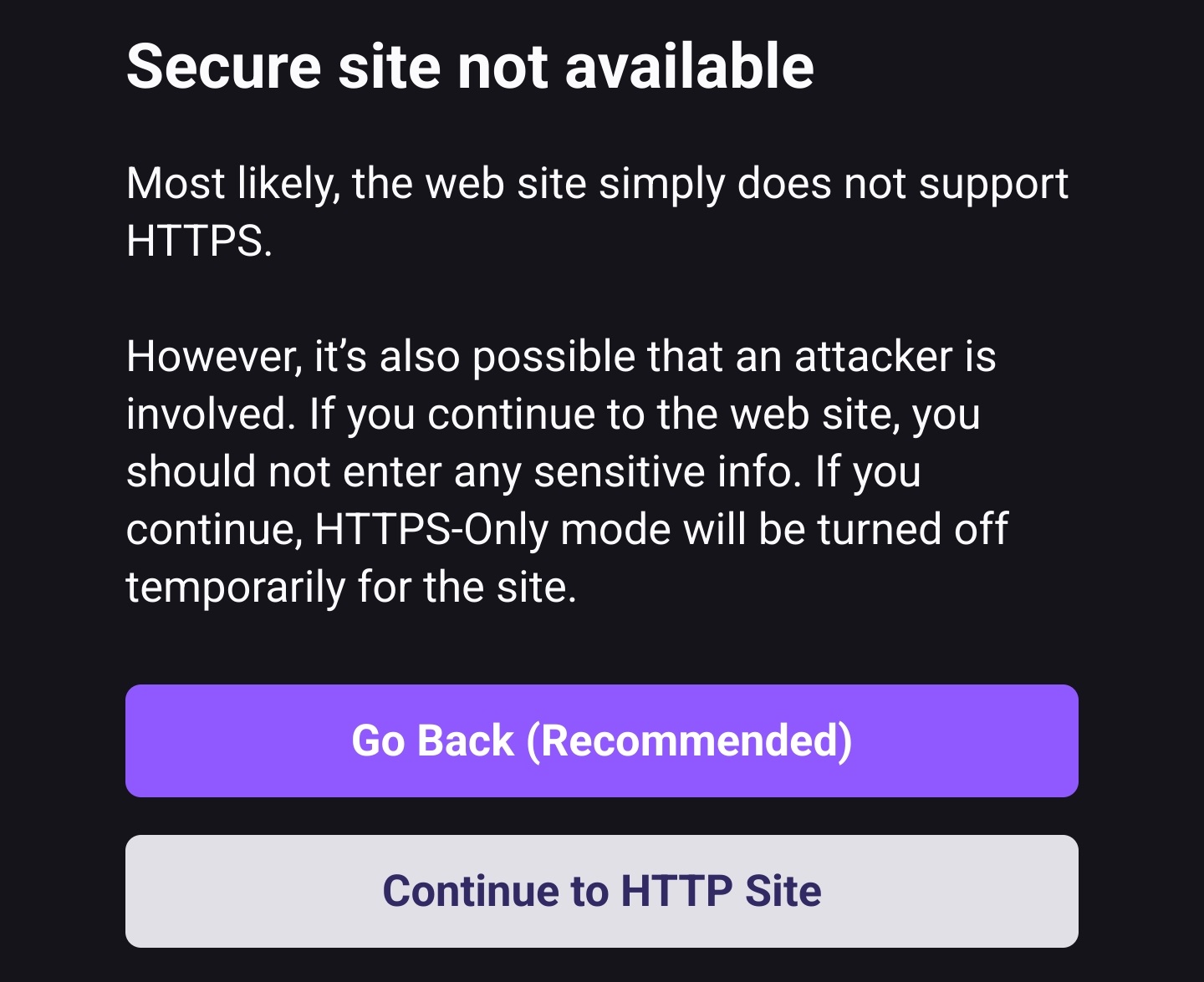
- If you receive a security warning like the one below, it likely means you're on the right track. Tap/click continue to site. This option may be under another option like "advanced" or similar.
Once I get to the login page, it says my username or password is incorrect.
- Make sure you are using just your username, not your full email e.g. "jcross" not "jcross@cathedralschoolstrust.org"
- The password is the same password you use to log in to the school computers or your email. This is not the password you used to connect to the WiFi.
- If your browser is trying to auto-fill your details, try typing them manually.
- Try signing into a school computer to confirm they're correct and your account isn't locked.
How often should I be required to log in again?
- You should be prompted to log in again after 12 hours.
- If you're being prompted to sign in every time you open your device or move between buildings, drop us an email to the helpdesk.
I've tried all of the above but it's still not working.
- If you're still having issues, drop us an email to the helpdesk.
BCCS = helpdesk@bristolcathedral.org.uk
CPS = helpdesk@cathedralprimaryschool.org
- If you need WiFi urgently, you can connect to the Guest WiFi. The password for this is SCHOOLguest