Step 1 - Download and install this app https://apps.apple.com/gb/app/microsoft-remote-desktop-10/id1295203466
Step 2 - Open the app and move to the Workspaces Tab.
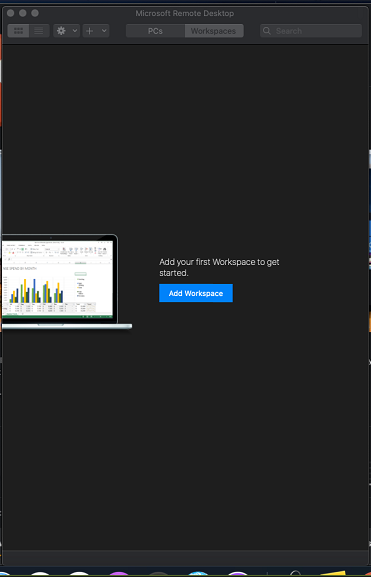
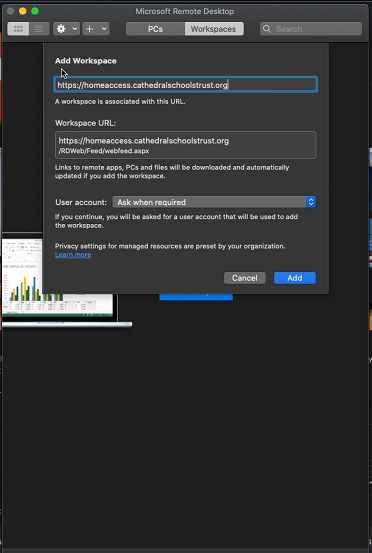
Step 3 - Add Workspace with the URL https://homeaccess.cathedralschoolstrust.org
Step 4 - When correctly entered it will automatically expand the menu and then press the Add button.
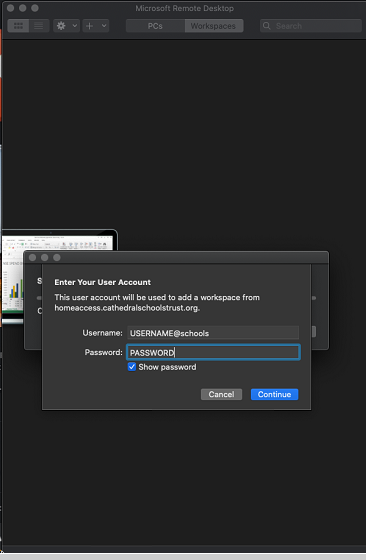
Step 5 - Input your login with the following format schools\Your username and your normal computer login password.
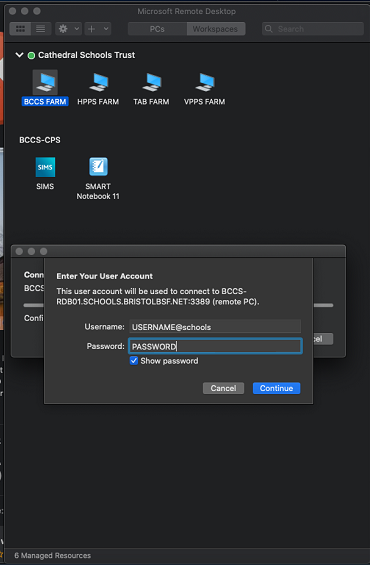
Step 6 - Click the icon marked with your school name as shown below. You may be asked your credentials again, input in the same format as the previous step.
If you are attempting to connect from a non-school network you will receive a Duo notification on your phone which you will need to approve to proceed.