Step 1:
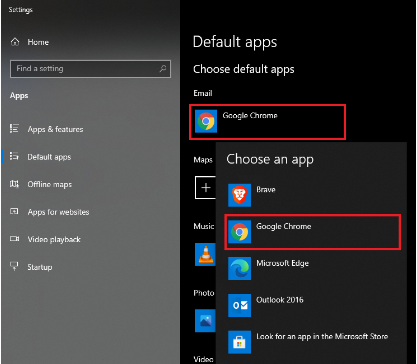
Go to Windows 10 Settings and search for Default apps settings.
Step 2:
Change the default Email app to Chrome.
Step 3:
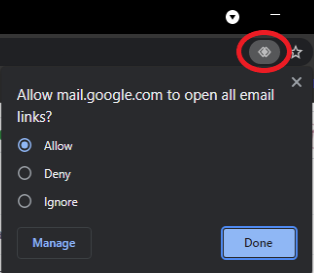
Open Chrome and go to Gmail. Next to the bookmark star icon, you should see a diamond icon as seen below. Click that and select allow then click done.
----------------------Only Continue To Step 4 If You Can’t See The Diamond----------------------
If you can’t see the diamond or accidentally clicked deny/ignore, continue on to step 4.
Step 4:
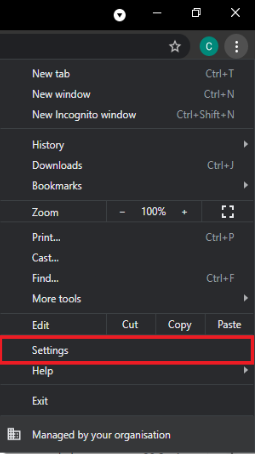
Go to the Chrome settings page.
Step 5:
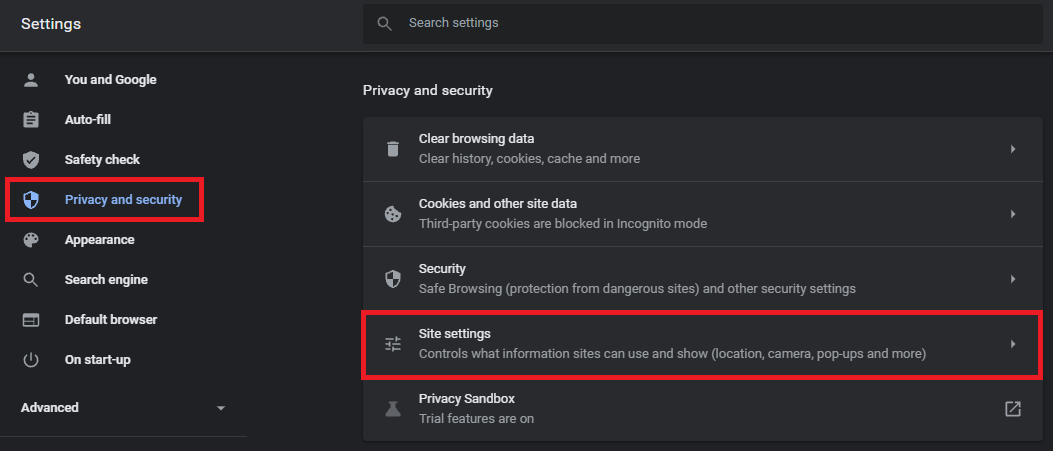
Click “Privacy and security” on the left of the page. Then click on “Site Settings”.
Step 6:
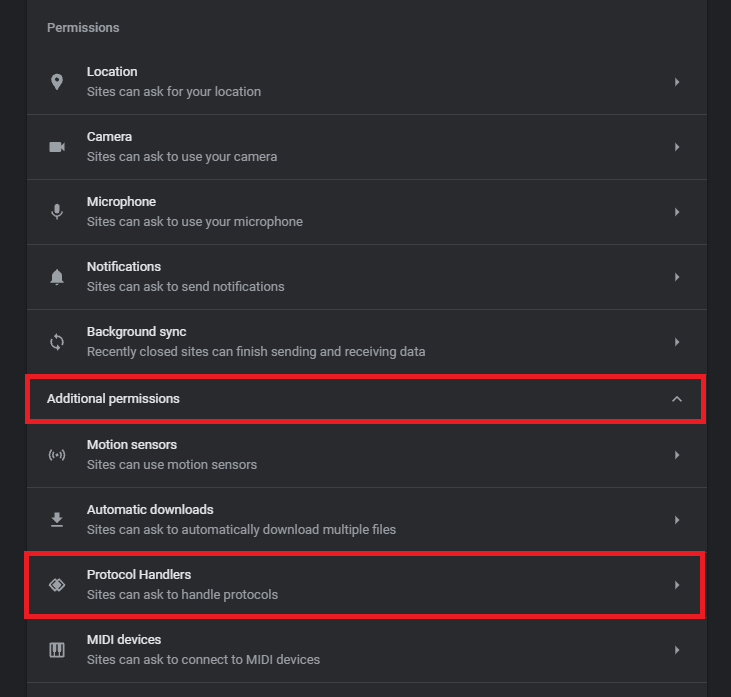
Under Permissions click “Additional permissions”. Then Click “Protocol Handlers”.
Step 7:
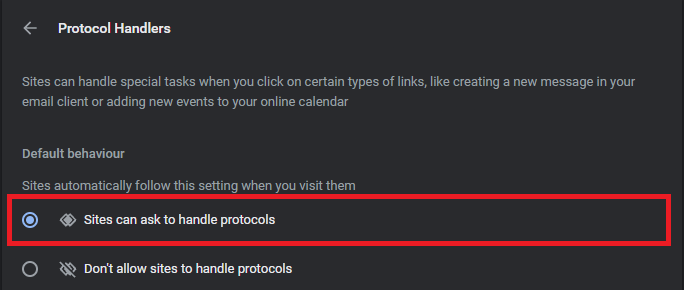
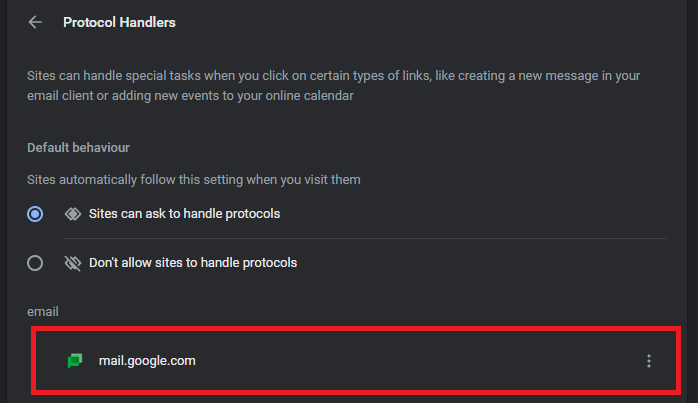
Ensure “Sites can ask to handle protocols” is selected.
Step 8:
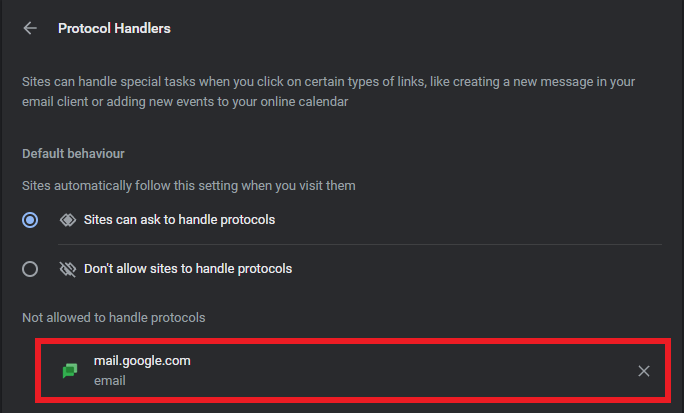
Below these options, you may see “mail.google.com” as seen in the screenshots below.
If not, go back to Step 3.
Step 8a:
If you see a cross next to it, as seen below. Click the cross to remove it and go back to step 3.
Step 8b:
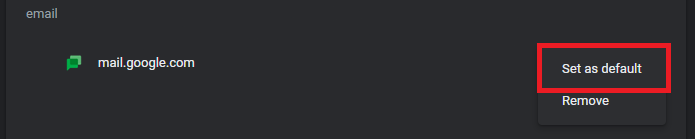
If you see 3 dots next to it, as seen below. Click them and select “Set as default”.
Step 9:
If done correctly, you should see the below.