Important Note: When trying to use Google Meets (or any other app that requires a camera and microphone), make sure that you are doing it from your local computer and not the Remote Desktop / Home-access.
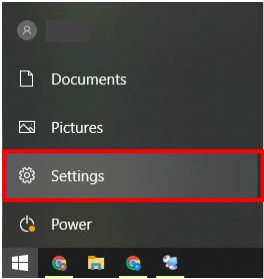
Step 1 - Open Windows settings (Click on Windows icon bottom left corner, then the cog).
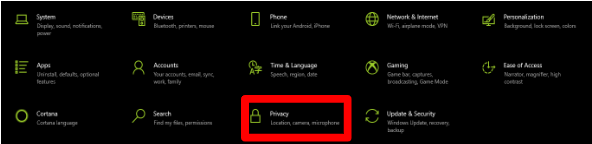
Step 2 - Click the Privacy Icon
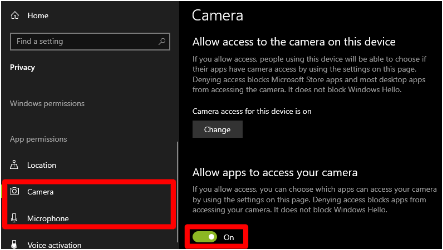
Step 3 - Go to Microphone and Camera in the left sidebar and switch the “Allow apps to access your…” to On.
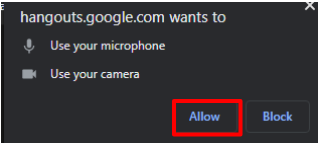
Step 4 - Enable Chrome to have access. Click 'Allow' when prompted by Chrome.
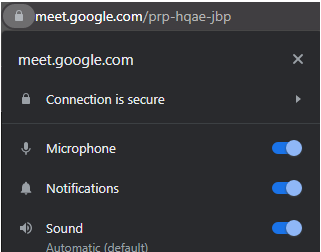
Step 5 - You can click the padlock icon at the left of the URL check if Chrome has been given access.