
General Connection Steps
This first step only applies to school laptops, however, the apps can be used on any computer with an internet connection. You need only follow on from step 2.
Log in to your computer as either User1 (when off-site) or your normal login (when onsite)
You can log in to user1 by typing .\user1 into the username section.
There is no password for User1 on laptops allocated before January 2020. For laptops allocated after this, the password is 5kalocal.
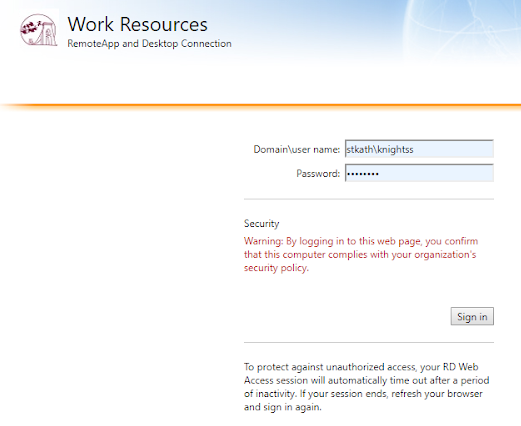
Open your Chrome browser and enter the address https://remote.skdrive.org (alternatively, click the link)
Sign in with your school network account. Be sure to put stkath\ before your username, otherwise, it will not give you access. For example stkath\knightss
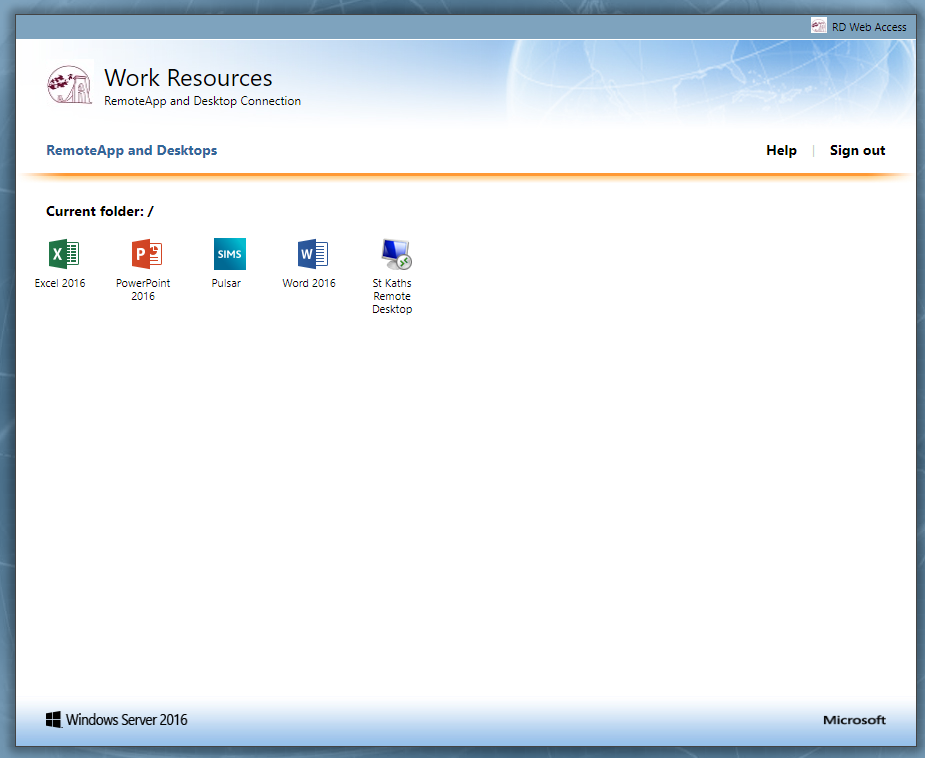
This will open the resources available to you. These include:
Excel
PowerPoint
SIMS (labelled as Pulsar)
Word
St Kaths Remote Desktop (Access to a full desktop as if you were in school)
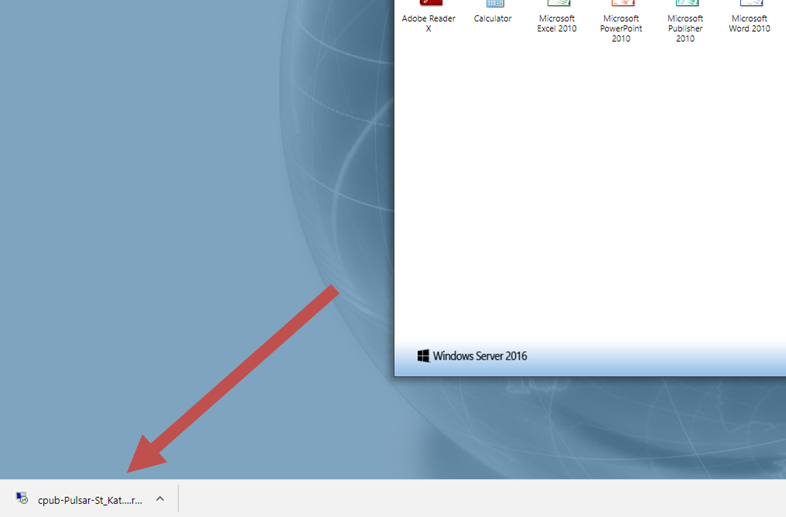
When you click on any of these, the page will automatically download a file which you will then need to open. This opens the remote connection to the school servers.
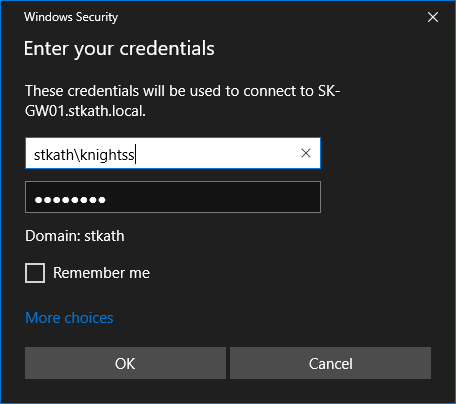
It will again prompt you to sign in, and again, please be sure to put stkath\ before your username otherwise you will not be able to access the resource.
You now have access to the resource you have chosen and the program will open as if on your computer.
Once the file has been downloaded, if you store it somewhere on your PC, you will be able to access the resources without completing steps 2 to 5, you just have to open the file again.
Opening Particular Documents
You will only be able to access documents from within a current program, there is no file explorer available unless you have selected the full desktop on the website.
To open a particular document in Microsoft Office applications, please follow the steps above first.
Please be aware that you will need to know what format the document is ie Word or Excel, as you will first need to open that particular resource.
Once the program is open and you see the “New Document” page
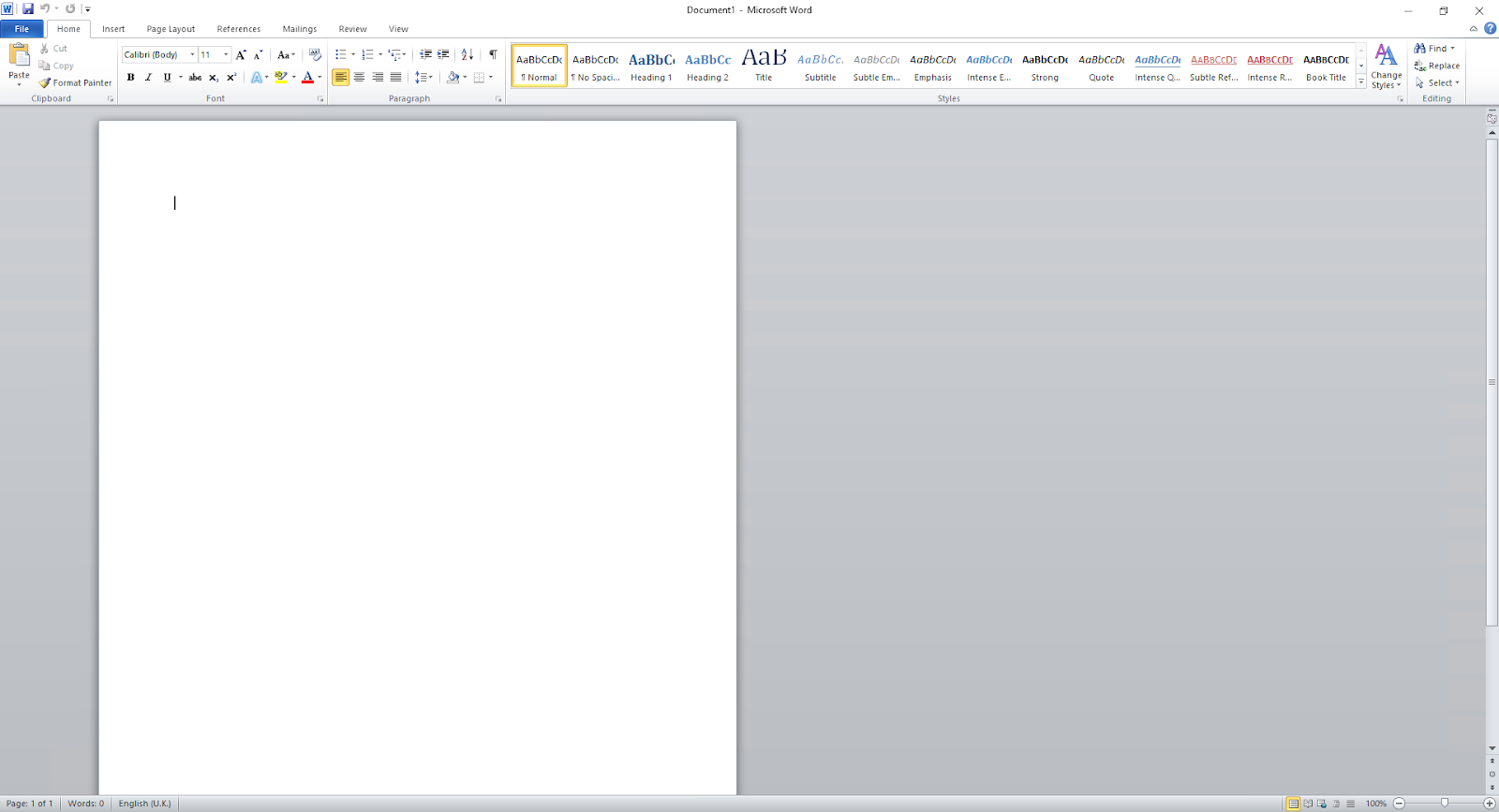
Open the file you want by clicking “File” and “Open”
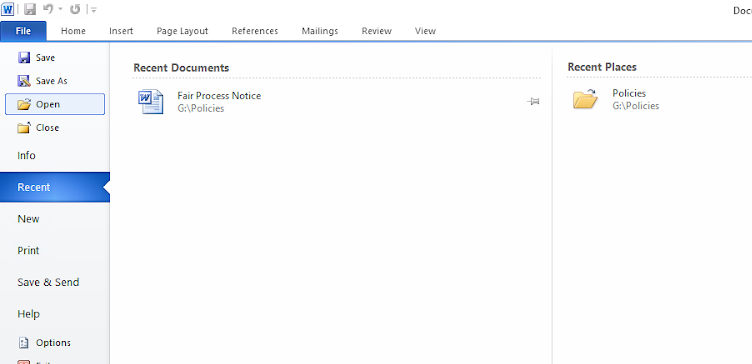
This will bring up a file browser which will look identical to that which you see in School.
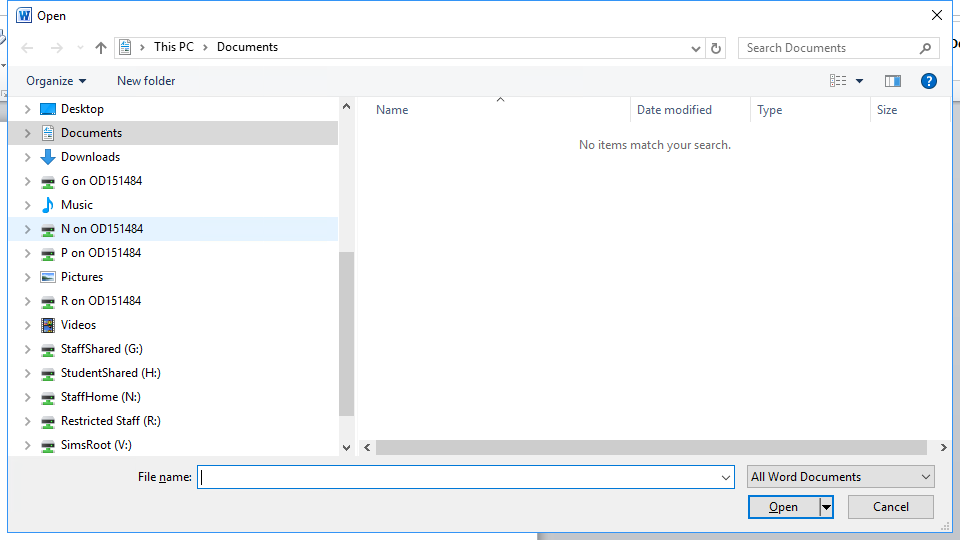
The network drives will appear as normal and you will be able to access your home drive. You will notice that any local drives will be labelled with your computer name. In this case, OD151484 is my office desktop.
Please note that “Documents”/ “Downloads” etc on the left will be of the computer user, whereas the network drives will be those of your school account.