Step 1 - Download and install this app https://apps.apple.com/gb/app/microsoft-remote-desktop-10/id1295203466
Step 2 - Open the app and move to the Workspaces tab.
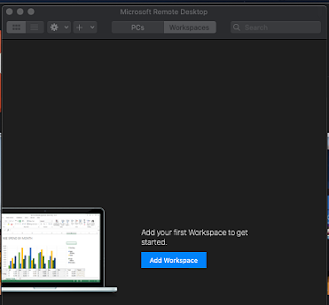
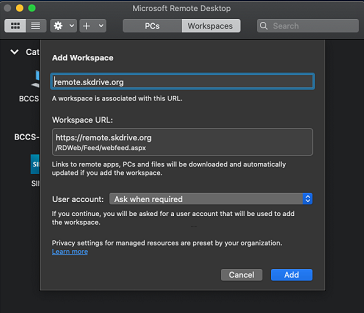
Step 3 - Add Workspace with the URL https://remote.skdrive.org
Step 4 - When correctly entered it will automatically expand the menu and then press the Add button.
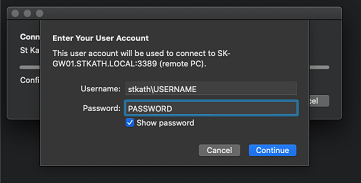
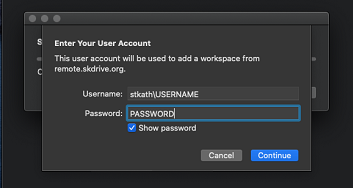
Step 5 - Input your login with the following format stkath\USERNAME and your normal computer login password.
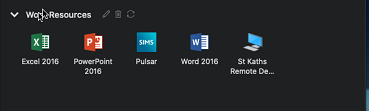
Step 6 - Click the icon marked with your school name as shown below. You may be asked your credentials again, input in the same format as the previous step.