If the steps below fail, please contact ICT support via helpdesk@skdrive.org
This list will be added to and adjusted as we experience more common issues.
1. Some rooms require the speakers to be turned on at the back of the speakers themselves.
2. If you have no image display or “No Input Found” on the screen, use the remote to select through
the Computer input options (Source).
3. If you have connected via HDMI ensure that you have the right audio output selected.
a. On the bottom right corner of the taskbar, select the speaker icon.
b. Check which input is selected, to use the audio output jack you need to have Realtek Audio selected.
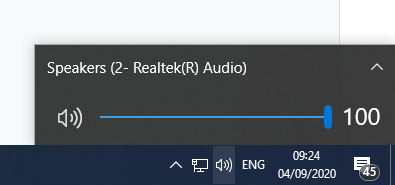
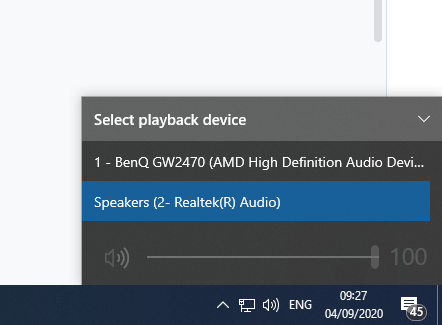
c. If you hear no audio or audio coming from the projector, then you will need to select the correct output. Do this with the arrow next to the output name. You should see similar options to the ones below.
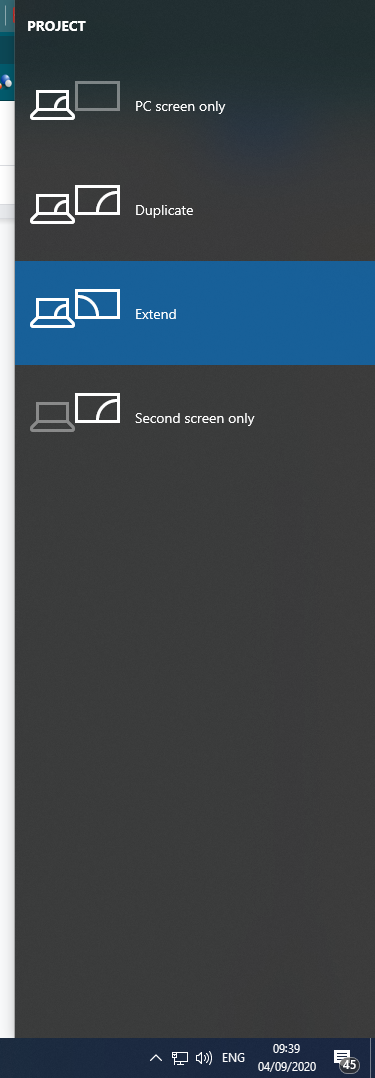
4. If you seem to be missing part of the screen on the side, please check you are in extend mode. Press Windows Key+P to bring up the multiple display options. Select extend from the list.
5. If you have a blank projector screen then use Windows+P also to ensure you have Extend selected and not PC screen only.