You will see that the Google Play Store has been made available to your Chromebook. Look for the icon below once installed:

From the Play Store, search for Microsoft Remote Desktop and install the app.
Once the installation has finished, open the app and you will see a screen similar to the following:
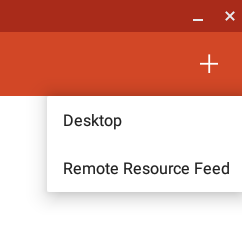
At the top, click on the plus arrow and select Remote Resource Feed:
Put in the following web address/details in the Feed URL box and click next:
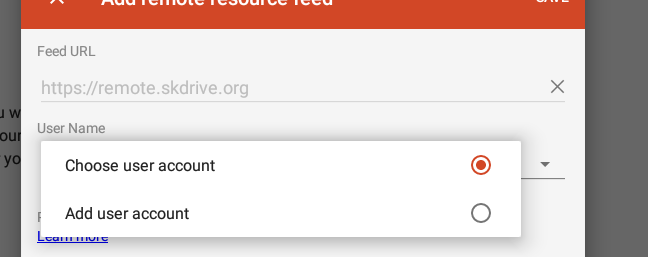
Once you have done this it will prompt you for a user name. From the drop-down arrow on the right of the User Name box, select Add User Account:
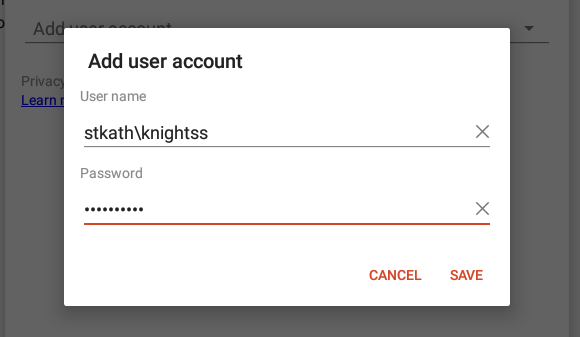
Type your username in the same format as you see below ie stkath\username and click sa\ve once you’ve entered your password:
Once complete you should be able to complete the process and it will place you back at the beginning. You will be presented with two options, “Desktops” and “Apps”
To use the remote desktop as a full Windows desktop experience, double click and open the connection present in the “Work Resources” folder.
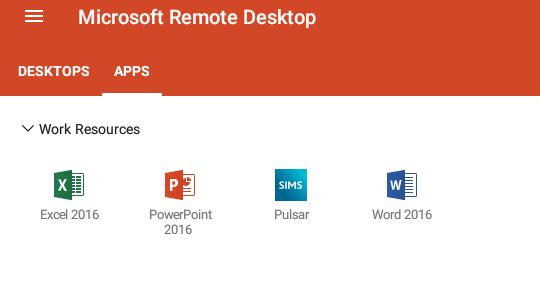
To use specific apps ie/ SIMS navigate to Apps where you will have the following options: